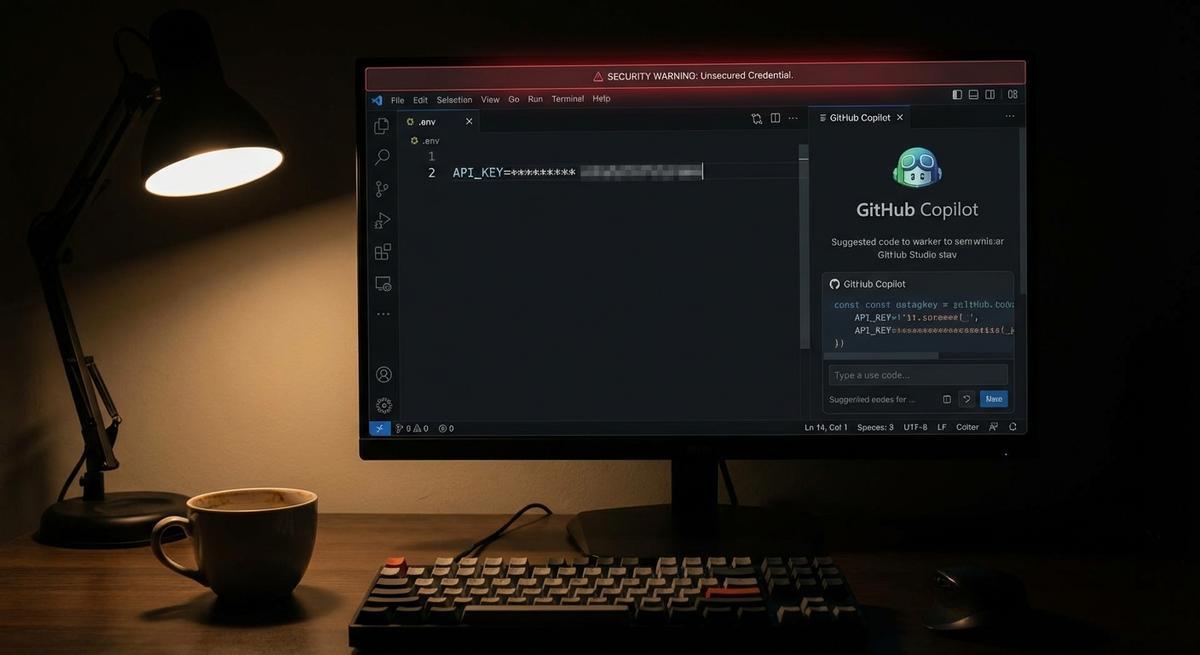
GitHub Copilot has seen a lot of your code. The question is whether it’s also seen your API keys.
This isn’t a hypothetical. When you open VS Code and start typing, Copilot reads your open files to generate suggestions. That context window doesn’t check file types. It doesn’t stop at .js or .py. If .env is open, Copilot sees .env. And starting April 24, GitHub’s updated policy means more of what Copilot sees may be used to train future models.
Here’s what’s actually happening, what the policy says, and what you can do about it before the deadline.
How GitHub Copilot Actually Ingests Your Code
Copilot operates in two distinct modes that are easy to conflate: inference-time context and training data.
At inference time, Copilot reads your open editor tabs to generate completions. This is real-time. When you start typing a function, the extension sends surrounding code, neighboring files, and recently opened buffers to GitHub’s servers. That payload gets processed by the model and a suggestion comes back. None of that data is stored permanently, in theory, but it does leave your machine.
Training data is different. When telemetry is enabled, GitHub may retain code snippets, prompts, and suggestion interactions to improve the model. This is opt-in for some tiers and opt-out for others, and the details matter a lot depending on your plan.
The context window is the more immediate concern. Copilot’s VS Code extension uses a retrieval system to decide what to send. It considers the current file, recently opened files in the same session, and sometimes other files in the same workspace. The extension has gotten more sophisticated over time: it actively looks for relevant context across your project, not just the file you’re editing right now.
That behavior is useful when you’re bouncing between routes.js and middleware.js. It’s a problem when .env was the last thing you opened to copy a value from.
The point is this: you don’t have to paste a secret into a chat window for Copilot to see it. Simply opening the file in the same editor session can be enough to put it in the context window.
What GitHub’s Privacy Policy Actually Says
GitHub updated its Copilot privacy terms ahead of the April 24, 2026 rollout. The details split by product tier in ways that matter.
For Copilot Individual (personal GitHub accounts), GitHub’s policy states that it may use “user engagement data” to improve its models. Specifically: “We may use personal data… to develop and improve GitHub Copilot.” The policy distinguishes between prompt data (what you type) and suggestion data (what Copilot returns). Both can be retained for training purposes under the default Individual settings.
For Copilot Business and Enterprise, the story is different. GitHub explicitly commits that “prompts and suggestions are not used to train GitHub Copilot models.” That’s a hard line. Business and Enterprise plans also get additional controls around telemetry and data retention.
The opt-out for Individual users exists but is buried. In your GitHub settings under “Copilot,” there’s a toggle for “Allow GitHub to use my code snippets for product improvements.” Disabling it is supposed to stop prompt data from being used for training. What it doesn’t disable is inference-time transmission, because that’s what makes Copilot work at all.
A few things the policy doesn’t say clearly: how long inference-time context is retained on GitHub’s servers before deletion, what happens to data in transit if there’s a breach, and whether the code used for training was gathered before a user opted out.
The April 24 change shifts the default for Individual users toward opt-in for AI training. Users who had previously not explicitly opted out will be enrolled. If you’re on an Individual plan and haven’t checked your settings, now is the time to check them.
Business and Enterprise accounts are in a better position here, but they’re still sending inference-time context to GitHub’s servers. The training protection doesn’t address that transmission.
The .env File Is Almost Always in the Context Window
Most developers have a workflow that goes something like this: start the dev server, hit a 401, open .env to check the key value, close .env, go back to the code. That’s it. Quick check, no harm done.
The problem is that VS Code doesn’t forget you opened .env. The Copilot extension tracks recently opened files in your session and uses them as context candidates. You don’t have to have .env visible or pinned. Opening it once is enough to make it eligible for inclusion in the next inference request.
This isn’t Copilot being sneaky. It’s doing exactly what it’s designed to do: gather as much relevant context as possible to give you better suggestions. The extension doesn’t have a concept of “this file contains secrets, exclude it.” It has a concept of “this file might be relevant, include it.”
.gitignore is not a safeguard here. .gitignore tells Git which files to exclude from version control. It has no effect on the VS Code extension’s file system access or Copilot’s context window. A file can be in .gitignore and still be sent to GitHub’s servers at inference time. These are entirely separate mechanisms.
The same applies to files outside your project root. If you open a secrets file from a parent directory, another project, or a dotfile location, Copilot can still pick it up if it’s part of the same editor session.
The core issue is that developer workflows naturally involve opening secret-bearing files. We check .env values, we paste connection strings, we verify that a key looks right before debugging further. Every one of those actions creates a window where Copilot can see the content.
What Types of Secrets Are Most at Risk
Not all secrets carry the same blast radius. Here’s how to think about which ones matter most if they end up in a context window.
Cloud provider keys sit at the top. AWS access keys, GCP service account credentials, and Azure client secrets can provision infrastructure, access storage, run compute, and rack up significant bills. A leaked AWS key with broad permissions can lead to full account compromise in minutes. These are the highest-priority secrets to keep out of .env files entirely.
Database connection strings come next. A connection string with embedded credentials gives an attacker direct read/write access to your data. Depending on your database permissions, that’s everything: user records, transaction history, application state. The damage is usually less immediate than cloud key compromise but can be worse for data integrity.
Third-party API keys vary widely. A Stripe secret key is a financial emergency. A SendGrid key is a spam and phishing risk. A Twilio key can run up charges or enable SMS fraud. The blast radius depends entirely on what permissions the key carries and what the upstream provider allows.
OAuth client secrets are often overlooked. A leaked OAuth secret lets an attacker impersonate your application to the identity provider. Depending on the scope your app requested, that could mean reading user emails, posting on their behalf, or accessing connected services.
Internal service tokens sit lower on the list but shouldn’t be ignored. API keys for internal microservices or admin endpoints can provide lateral movement if an attacker is already inside your infrastructure.
The common thread: any of these can appear in a .env file that a developer opens during a normal coding session.
The Settings That Are Supposed to Protect You (And Their Limits)
GitHub has added controls to address this problem. They help, but they’re not complete solutions.
.copilotignore works like .gitignore for Copilot. Add file patterns to it and the extension is supposed to exclude those files from context. Adding .env* to .copilotignore should prevent .env, .env.local, .env.production, and similar files from being included in inference requests.
# .copilotignore
.env
.env.*
*.pem
*.key
secrets/
This is worth doing. But understand the limits. .copilotignore only works for the project where it’s defined. If you open an .env file from outside the project root, it may not be covered. The feature also relies on the extension respecting the file, and that behavior can vary between extension versions and editor configurations.
Content exclusions are available for Copilot Business and Enterprise accounts. Admins can configure repository-level and organization-level exclusions in the GitHub web interface. These settings apply across the team, which is useful for enforcing consistent behavior without relying on individual developers to configure their own .copilotignore.
Telemetry and logging settings are separate from context window behavior. Disabling telemetry in VS Code settings reduces what the extension reports back about your usage. It doesn’t stop inference-time context from being sent to complete suggestions. Those are different network requests controlled by different settings.
The honest assessment: .copilotignore is useful but easy to misconfigure. Content exclusions require a paid plan and admin access. Neither setting gives you a guarantee that secrets never leave your machine, because Copilot has to send context to work at all.
The controls are additive protections on top of a system that fundamentally needs network access to function. They reduce risk; they don’t eliminate it.
No .env file means nothing for Copilot to read
API Stronghold injects secrets at execution time. Your keys never touch the filesystem, so AI coding tools can't see them.
No credit card required
The Structural Fix: Don’t Keep Secrets in Files Copilot Can See
The most reliable defense isn’t a setting. It’s removing .env files from the picture entirely so there’s nothing for Copilot to read.
The pattern is straightforward: inject credentials at execution time rather than storing them in files that live in your project directory.
CLI-injected credentials let you pass secrets as environment variables directly from a secure store when you run a command. The secret exists in memory for the duration of the process and never touches the filesystem. Tools like direnv, combined with a secrets manager backend, can automate this without requiring developers to open any files.
The phantom token pattern takes this further. Instead of storing real credentials anywhere the developer can access, developers authenticate against a proxy or gateway that holds the actual secrets. The developer gets a short-lived token that’s only useful through the proxy. The real API key never appears in any file, editor, or terminal session.
Vault-managed runtime injection is the enterprise version of this approach. HashiCorp Vault, AWS Secrets Manager, or similar tools issue credentials dynamically at runtime. The application fetches a secret when it starts, uses it for that session, and the credential can be rotated or revoked without touching any code or config files. Developers don’t have standing access to the raw credentials at all.
All three approaches share the same property: they make the question of whether Copilot can see your secrets irrelevant. If the secret is never in a file that the editor touches, it can’t end up in the context window.
This is a structural solution, not a mitigation. It changes the architecture so the problem can’t occur, rather than trying to block it at the tool level.
What to Do Right Now
The April 24 deadline is close. Here’s a concrete checklist you can work through today.
1. Check your Copilot settings. Go to github.com, open Settings, find Copilot, and look at the training data toggle. If you’re on an Individual plan, verify whether “Allow GitHub to use my code snippets for product improvements” is enabled or disabled. Set it to match your actual preference.
2. Add .env* to .copilotignore. Create a .copilotignore file in your project root if one doesn’t exist. Add .env, .env.*, and any other secret-bearing file patterns. Commit it so the whole team benefits.
3. Stop opening .env in the same VS Code session where you’re writing code. This sounds simple but requires changing a habit. Use a separate terminal to inspect environment variables with env | grep VARIABLE_NAME. Use your secrets manager’s web UI. Don’t open the file in the editor.
4. Rotate any credentials that may have been exposed. If you’ve been using Copilot Individual with telemetry enabled and opening .env files in the same session, treat those credentials as potentially compromised. Rotate AWS keys, database passwords, and third-party API keys. Most providers make this straightforward.
5. Move to runtime injection. This is the long-term fix. Pick a secrets manager (AWS Secrets Manager, Vault, 1Password Secrets Automation) and start migrating your most sensitive credentials away from .env files. Start with the highest blast-radius secrets: cloud keys and database connection strings.
The April 24 change is a useful forcing function. The underlying issue, secrets in editor-visible files, predates Copilot and will outlast this particular policy change. Fixing it structurally pays off regardless of which AI tools you use.
April 24 is close. Fix the .env problem before the deadline.
Runtime credential injection means no .env file to expose, nothing in your editor context, nothing in training data.
No credit card required