Tutorial • Secret Sharing • How-To Guide • API Security
What You'll Learn
This guide walks you through using API Stronghold’s one-time secrets feature to securely share passwords, API keys, and other sensitive credentials. By the end, you’ll know how to create self-destructing secrets, share them safely, and track who accessed them.
Sharing passwords and API keys shouldn’t mean pasting them into Slack, email, or a sticky note. One-time secrets provide a secure alternative: encrypted, self-destructing links that can only be viewed once before being permanently deleted.
Let’s walk through exactly how to use this feature in API Stronghold.
What Are One-Time Secrets?
One-time secrets are encrypted messages that self-destruct after being viewed. Instead of sending a password directly through chat or email, you create a secure link that:
- Can only be viewed once (then it’s gone forever)
- Expires after a set time period (even if never viewed)
- Can be passphrase-protected for extra security
- Creates an audit trail of when and by whom it was accessed
This means the actual credential never sits in your Slack history, email inbox, or anywhere else an attacker could find it later.
Step 1: Navigate to One-Time Secrets
After logging into API Stronghold, click “One-Time Secrets” in the left sidebar navigation.
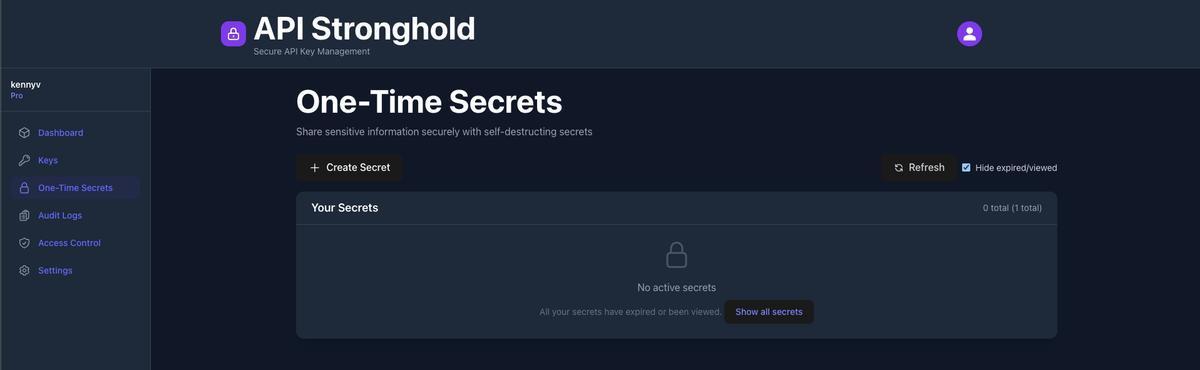
You’ll see the One-Time Secrets dashboard showing:
- A ”+ Create Secret” button to create new secrets
- “Your Secrets” list showing secrets you’ve created
- Status indicators showing which secrets are Active, Viewed, or Expired
- The share URL for each active secret
Step 2: Create a New Secret
Click the ”+ Create Secret” button to open the creation form.
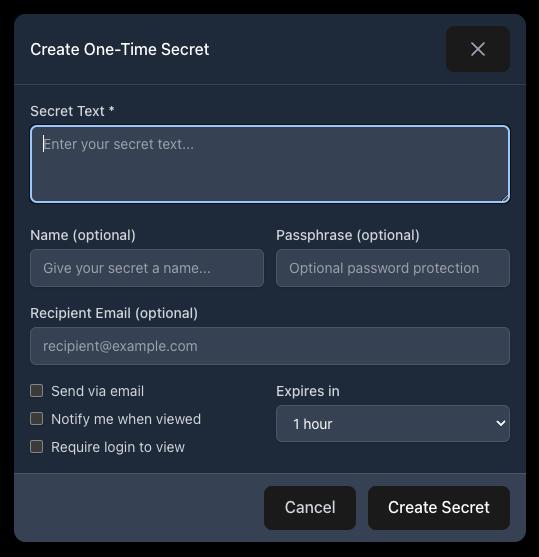
The form includes these fields:
Required Fields
- Secret Text: The sensitive content you want to share (password, API key, credentials, etc.)
Optional Fields
- Name: A friendly label to help you identify the secret later (e.g., “Production DB Credentials”)
- Passphrase: An additional password the recipient must enter to view the secret
- Recipient Email: If provided, the recipient can receive the link via email
- Expires in: How long the secret remains accessible (default: 1 hour)
Options
- Send via email: Automatically email the link to the recipient
- Notify me when viewed: Get an alert when someone accesses the secret
- Require login to view: Require the recipient to be logged into API Stronghold (creates a full audit trail)
Step 3: Fill in Your Secret
Let’s create an example secret. Fill in the form with your sensitive data:
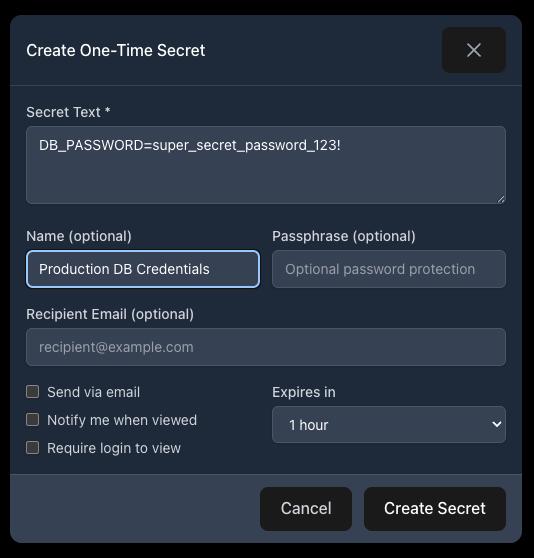
In this example:
- Secret Text:
DB_PASSWORD=super_secret_password_123! - Name: “Production DB Credentials”
- Expires in: 1 hour
For highly sensitive credentials, consider also:
- Adding a passphrase and sharing it through a separate channel (like a phone call)
- Enabling “Require login to view” for a complete audit trail
- Setting a shorter expiration time
Step 4: Generate and Share the Link
Click “Create Secret” to generate your secure link. You’ll see:
- A success notification confirming the secret was created
- The share URL is automatically copied to your clipboard
- The secret appears in your list with an “Active” badge
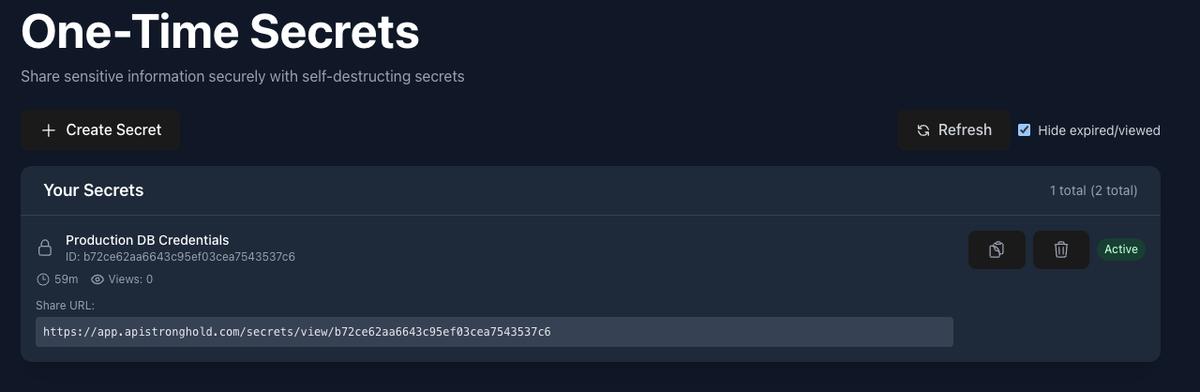
The share URL looks something like:
https://app.apistronghold.com/secrets/view/9ee289f9cef...Step 5: Share the Link
Now share this link with your recipient through your preferred channel:
- Slack: Paste the link in a direct message
- Email: Send it directly or use the built-in email feature
- Text: Send via SMS for quick sharing
- Ticket: Add to a Jira ticket or support request
Important: Only share the link, never the actual secret. If you added a passphrase, share that through a different channel for extra security.
Step 6: Recipient Views the Secret
When your recipient clicks the link, they’ll first see a warning confirming this is a one-time secret:
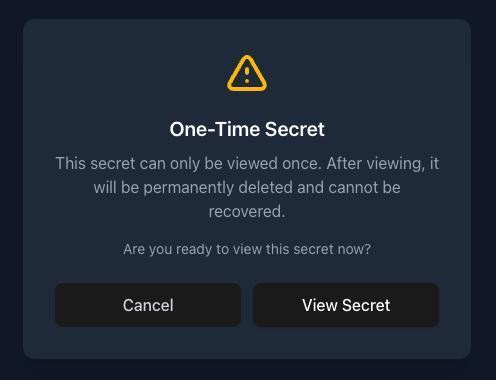
After clicking “View Secret”, the secret content is revealed:
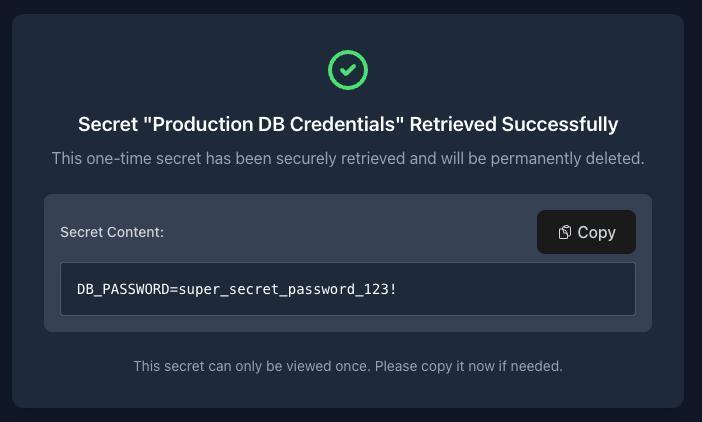
The recipient sees:
- A green checkmark indicating the secret was successfully accessed
- The secret content displayed in a secure viewer
- A timestamp showing when it was viewed
- A warning that the secret has been permanently deleted and cannot be viewed again
If you enabled passphrase protection, they’ll first be prompted to enter the passphrase before seeing the content.
Step 7: Track Access in Your Dashboard
Back in your dashboard, you can see that the secret has been viewed:
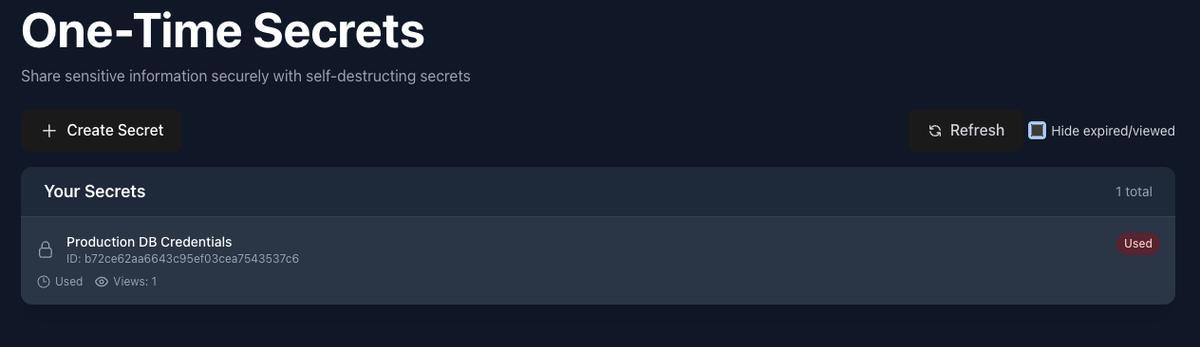
The secret card now shows:
- Views: 1 (or however many times it was accessed)
- Status changes from “Active” to “Viewed” or “Expired”
- Timestamp of when it was accessed
If you enabled “Notify me when viewed”, you’ll also receive an email notification.
Step 8: View Audit Logs
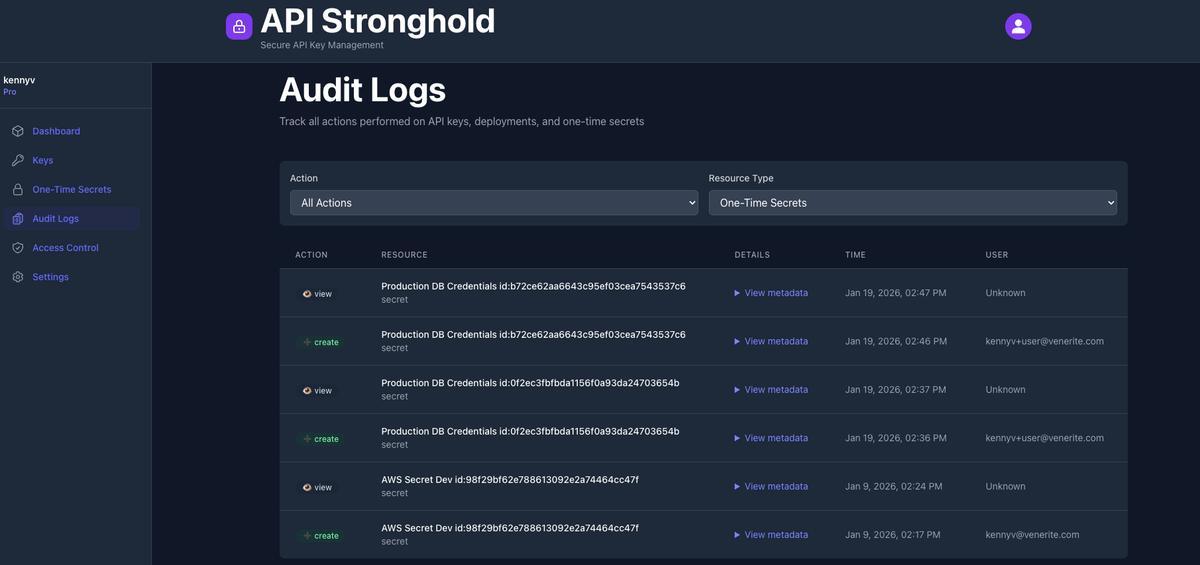
API Stronghold provides comprehensive audit logging for all your one-time secrets. Navigate to Audit Logs in the left sidebar to see a complete history of all secret activity.
What the Audit Logs Show
The audit logs track every action performed on your secrets:
| Column | Description |
|---|---|
| Action | The type of action, create when a secret is made, view when it’s accessed |
| Resource | The secret name and unique ID (e.g., “Production DB Credentials”) |
| Details | Link to view full metadata for the action |
| Time | Exact timestamp of when the action occurred |
| User | Who performed the action: shows email for authenticated users, “Unknown” for anonymous viewers |
Filtering Your Logs
Use the dropdown filters at the top to narrow down your view:
- Action: Filter by specific actions (All Actions, Create, View)
- Resource Type: Filter to show only One-Time Secrets (vs. API keys or deployments)
This makes it easy to answer questions like:
- “Who viewed the production credentials I shared yesterday?”
- “What secrets did I create this week?”
- “Has anyone accessed the API key I sent to the contractor?”
Pro Tip: Authenticated Secrets for Full Attribution
Notice how some entries show “Unknown” in the User column? That’s because the viewer wasn’t logged in. For full user attribution, enable “Require login to view” when creating secrets, you’ll see the viewer’s actual email address in the audit logs.
Best Practices for One-Time Secrets
Choose the Right Expiration Time
| Scenario | Recommended Expiration |
|---|---|
| Quick handoff (colleague online) | 5-15 minutes |
| Same-day sharing | 1 hour |
| Async collaboration | 24 hours |
| Vendor/contractor sharing | 24-48 hours |
Use Passphrases for High-Sensitivity Secrets
For production credentials, payment processor keys, or other critical secrets:
- Enable passphrase protection
- Share the link via one channel (e.g., Slack)
- Share the passphrase via another channel (e.g., phone call)
This way, even if the link is intercepted, the attacker can’t access the secret without the passphrase.
Enable “Require Login” for Audit Trails
When you need to know exactly who accessed a secret:
- Enable “Require login to view”
- The recipient must be logged into API Stronghold
- Full audit trail captures: user identity, IP address, timestamp, and device info
This is especially important for:
- Compliance requirements (SOC 2, PCI DSS, HIPAA)
- Sensitive production credentials
- Contractor and vendor access
Name Your Secrets
Always add a descriptive name to your secrets. This helps you:
- Quickly identify secrets in your dashboard
- Know what was shared when reviewing audit logs
- Track which credentials have been distributed
Common Use Cases
Onboarding New Team Members
Instead of pasting credentials in onboarding docs:
- Create one-time secrets for each credential they need
- Share links during their first-day meeting
- They access each one, and the secrets self-destruct
- No credentials left sitting in Slack or email
Sharing with Contractors
When external partners need temporary access:
- Create secrets with 24-48 hour expiration
- Enable passphrase protection
- Share link via email, passphrase via phone
- Enable “Require login” for audit trail
Incident Response
During security incidents, you may need to share emergency credentials quickly:
- Create secrets with short expiration (15-30 minutes)
- Share with incident responders
- Secrets auto-delete after the incident
- Full audit trail for post-incident review
What Happens to Expired or Viewed Secrets?
Once a secret is viewed or expires:
- The encrypted content is permanently deleted from our servers
- No one (including API Stronghold staff) can recover it
- The audit log retains metadata (who viewed it, when) but not the secret content
- You can filter your dashboard to show/hide expired secrets
Troubleshooting
”Secret not found or has already been viewed”
This means someone already accessed the secret, or it expired. You’ll need to create a new secret and share it again.
”This secret has expired”
The expiration time passed before the recipient could view it. Create a new secret with a longer expiration time.
”Incorrect passphrase”
The recipient entered the wrong passphrase. Double-check that you shared the correct passphrase through your separate channel.
Summary
One-time secrets provide a secure, auditable way to share sensitive credentials without leaving them in your message history. Here’s the workflow:
- Create a secret with optional passphrase and expiration
- Share the link (not the credential itself)
- Recipient views the secret once, then it’s deleted
- Track access through your dashboard and audit logs
No more passwords sitting in Slack forever. No more credentials lost in email threads. Just secure, self-destructing links that leave nothing behind.
Related Resources
- Stop Sending Passwords in Slack: A Safer Way to Share Secrets →, Why one-time secrets beat plain chat messages
- Authenticated Secrets: Building Comprehensive Audit Trails →, Deep dive into authenticated secret sharing
- The Secret Leaks Nobody Talks About →, The hidden risks of credential sprawl
Start Sharing Secrets Securely
Ready to stop pasting passwords in Slack? Start your free trial → and create your first one-time secret in seconds.
Questions? Contact our team → for help getting started.